


NEWS
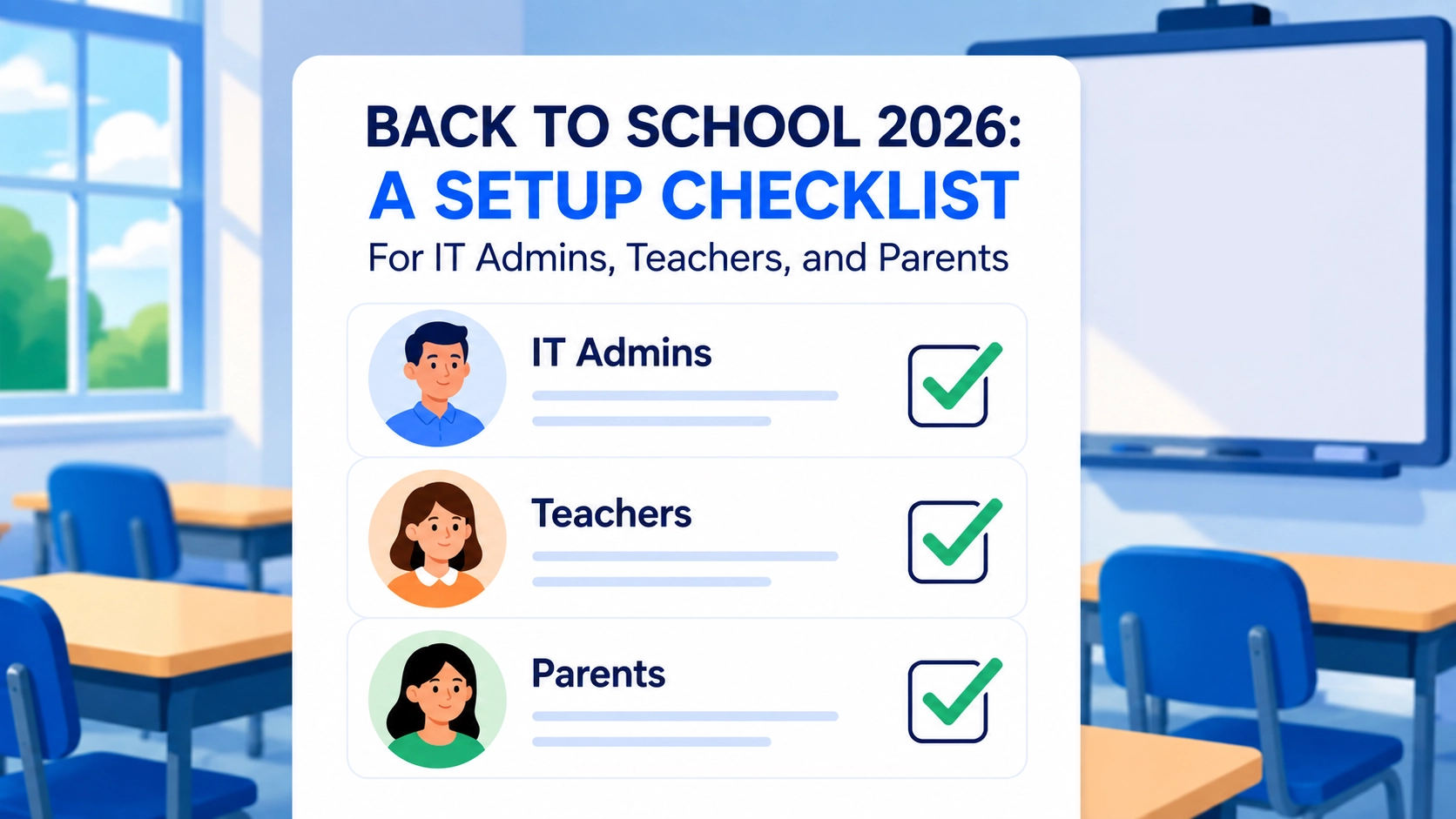
Back to School 2026: A Setup Checklist for IT Admins, Teachers, and Parents
The first week of school moves fast. Devices get handed out, class rosters change, filtering policies that worked in late spring suddenly don’t fit the new school year, and everyone from IT to teachers and parents is trying to get their piece of the puzzle sorted before the bell rings.
That’s a lot to sort through in a short window, and each group is working from a different starting point. IT is coming off a summer of minimal network activity and now has to prepare for full traffic again. Teachers are walking into a room of new faces with tools they may not have touched in months. Parents are handing over a device and hoping the rules from last year still apply. None of these are the same job, even though they’re all part of the same first week.
Instead of one generic list of “tips,” here’s a practical checklist split into three sections, one for each role. If you’re in IT, skip to the admin section. If you’re a teacher, go straight to classroom setup. If you’re a parent, the last section is for you.
What Should IT Admins Check Before Students Log Back In?
Summer is when filtering policies get stale. OUs change, new devices get imaged, and bypass methods that didn’t exist in the spring are already circulating by the time class starts. Here’s what to run through before your network fills back up:
- Confirm teacher access is working. Make sure all teachers can log in. Sync issues happen, and a locked-out teacher on day one isn’t the best way to start the year. Worth a quick check across the board before assuming everything carried over from last year.
- Double-check student licensing before assuming it’s fine. Confirm licenses are assigned to students actually enrolled this year, not last year’s graduates. Since students typically sync in via Google Workspace, Azure AD, or LDAP by OU, an outdated OU can leave active students unlicensed. Also worth checking: whether auto-licensing is turned on for each active OU. A new OU that isn’t set to auto-license can leave enrolled students without access, even though nothing looks wrong on the surface.
- Run a device and appliance check. Confirm every school-issued device checks in correctly, appliance firmware is current, and any on-prem hardware handling BYOD or IoT traffic passed its summer maintenance window. A single misconfigured appliance can quietly create a filtering gap for an entire building.
- Review your content filtering policies and exception lists. Exceptions added mid-year for a specific project or class often get forgotten. Go through your list and remove anything that shouldn’t carry over into the new year.
- Take bypass prevention seriously because the landscape is constantly shifting. Students aren’t just dodging boredom when they go looking for a workaround. Proxy sites and “free VPN” downloads are increasingly the entry point for phishing and malware, not just a way around the filter. A student trying to unblock a game site can just as easily end up handing over credentials or installing something malicious without realizing it. Static blocklists don’t catch this kind of thing, since it’s a behavior pattern, not a bad domain. Before the year starts, confirm your filtering approach can catch the behavior itself, not just known bad sites.
- Refresh escalation and permission lists. Roles shift every summer — new counselors step in, admins move around, someone takes on responsibilities they didn’t have before. If your safety and filtering alert lists still show last year’s names, alerts may not reach the right person. Go through the lists now to make sure they’re current and alerts reach whoever’s actually in that role right now.
How Should Teachers Set Up Their Classroom Tech for the New School Year?
Last year we covered the mindset — staying fresh, building relationships, setting goals. This year, here’s the tactical follow-up on what to configure before day one:
- Set up your classroom management system before you need it. Don’t wait for the first distracted-browsing incident to figure out how screen monitoring works. Spend fifteen minutes now setting up your groups, session controls, and tab-monitoring so it’s second nature by week two.
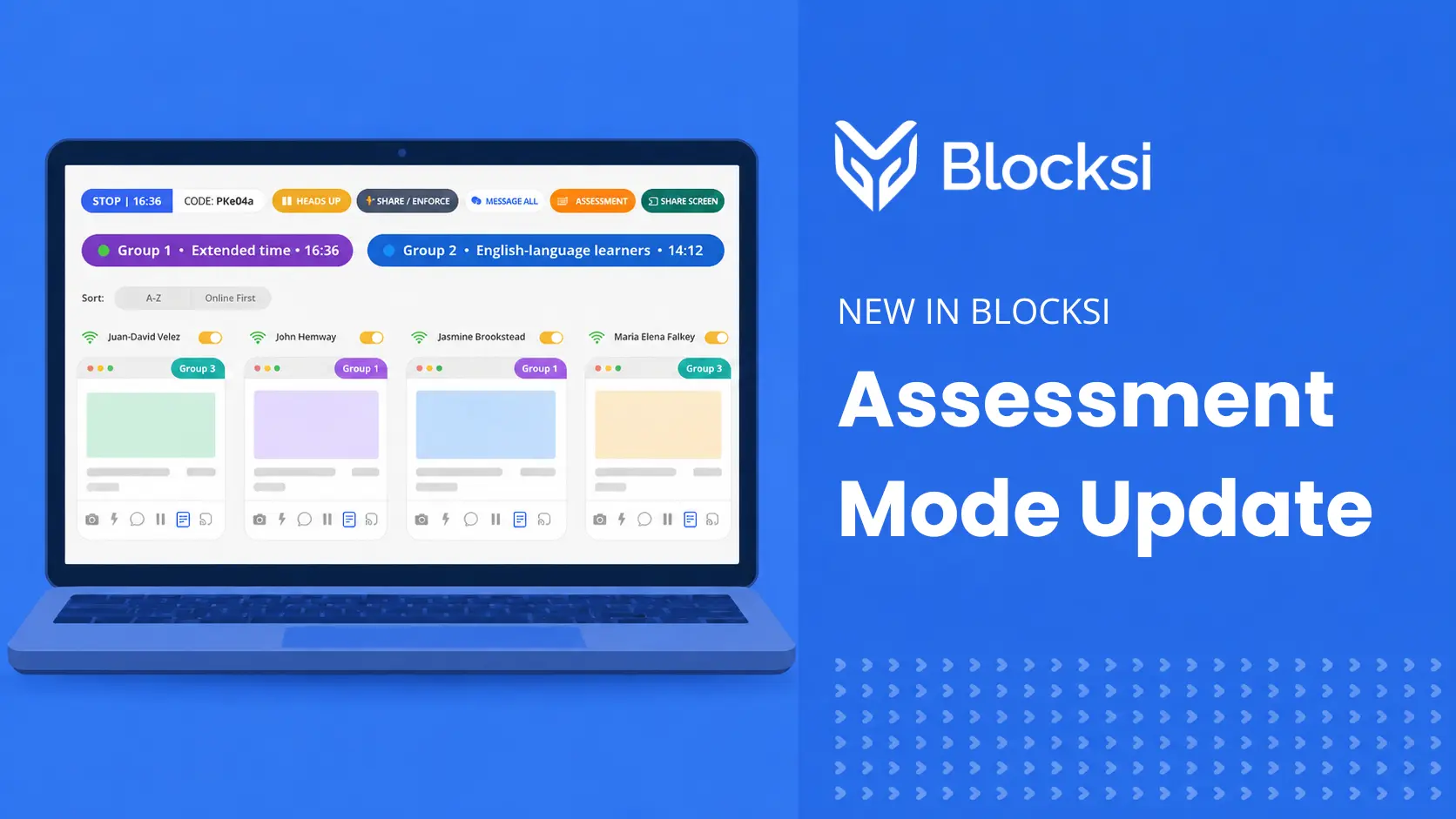
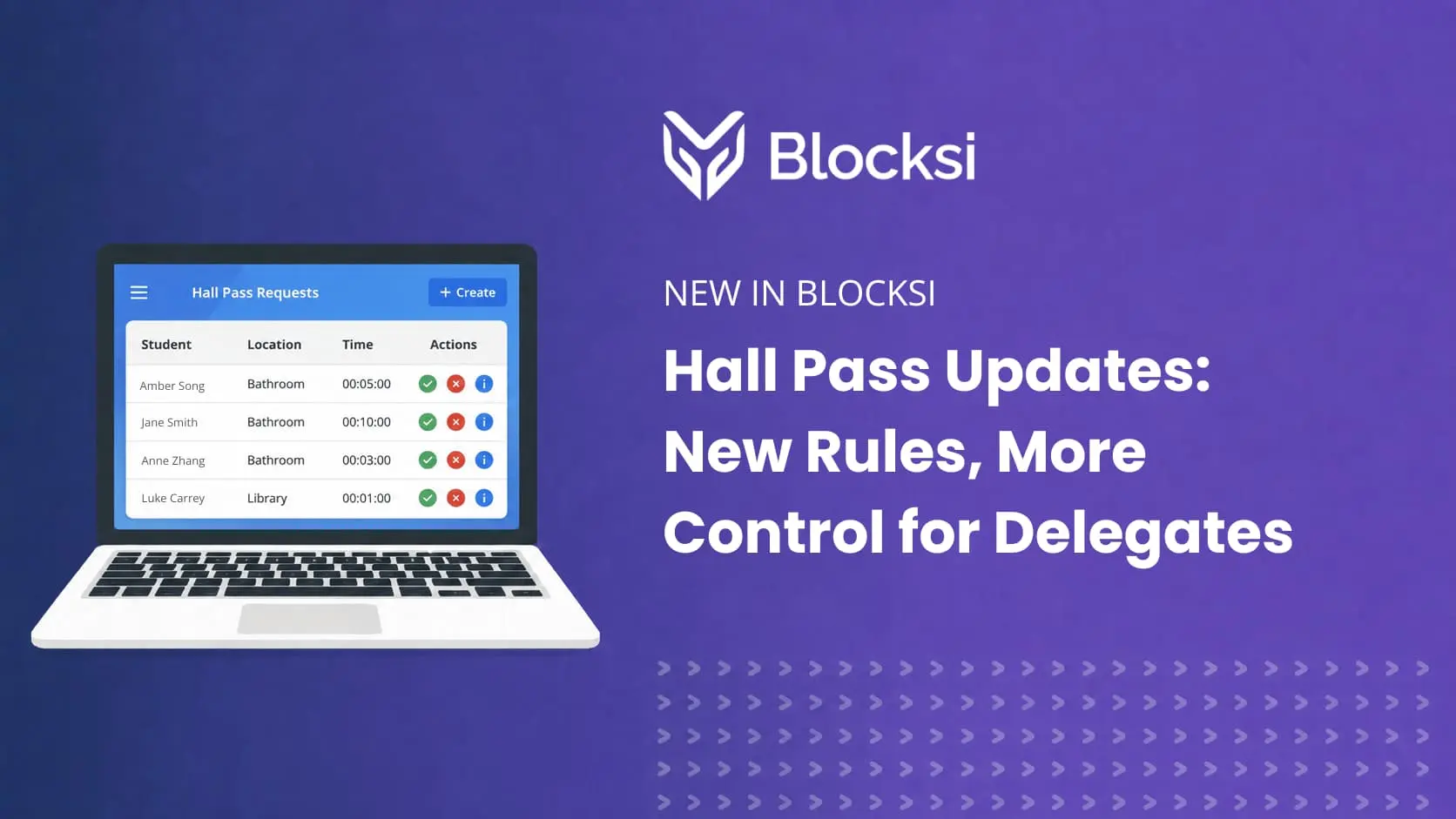
- See what’s new before the year starts. Blocksi has added tools like Hall Pass, automated lesson summaries with Class Notes, and an Assessment feature over the past year. If you haven’t looked at what’s available since the last school year, now’s the time. Not every feature will fit every classroom, but knowing what’s on offer means you can pick what actually solves a problem you might have.
- Build engagement into your first week, not just your syllabus. Interactive activities, quick recap quizzes, and structured group work using your classroom management tools do more for engagement in week one than any icebreaker. Students read your setup as a signal for how the whole year will run. A tight, purposeful use of tech from day one sets that tone early.
- Set your own classroom device rules now, not reactively. School-wide policy sets the baseline, but the day-to-day specifics of when devices are open, closed, or put away during your class are yours to decide. Whether that’s “phones away during instruction” or “Chromebooks closed unless prompted,” write your rule down and post it where students can see it. Ambiguity in week one can become a discipline problem in week three.
What Should Parents Check on the Home End?
Parents don’t manage the classroom, but they do manage what happens once the device comes home, and in 2026, that’s a bigger job than it used to be.
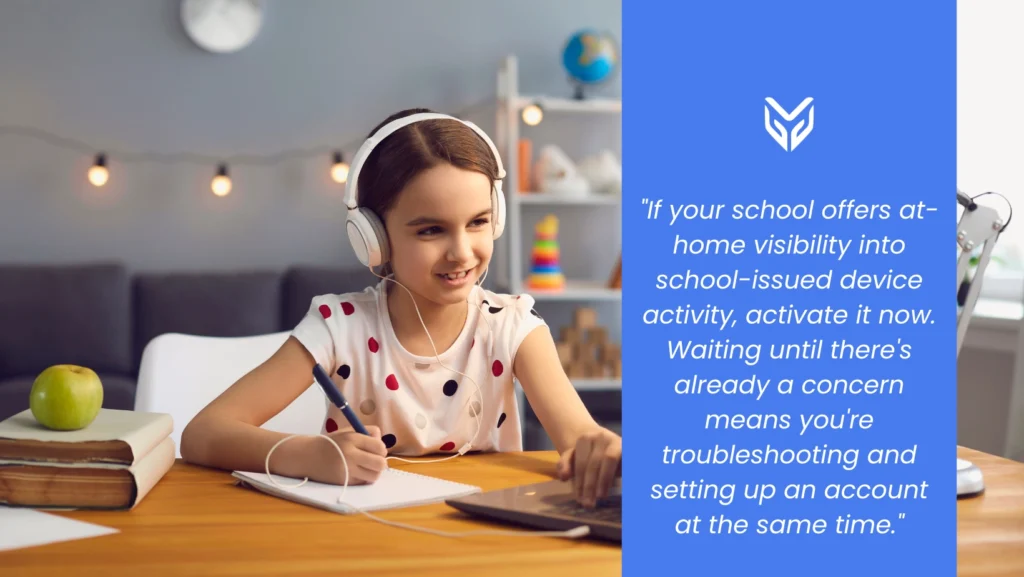
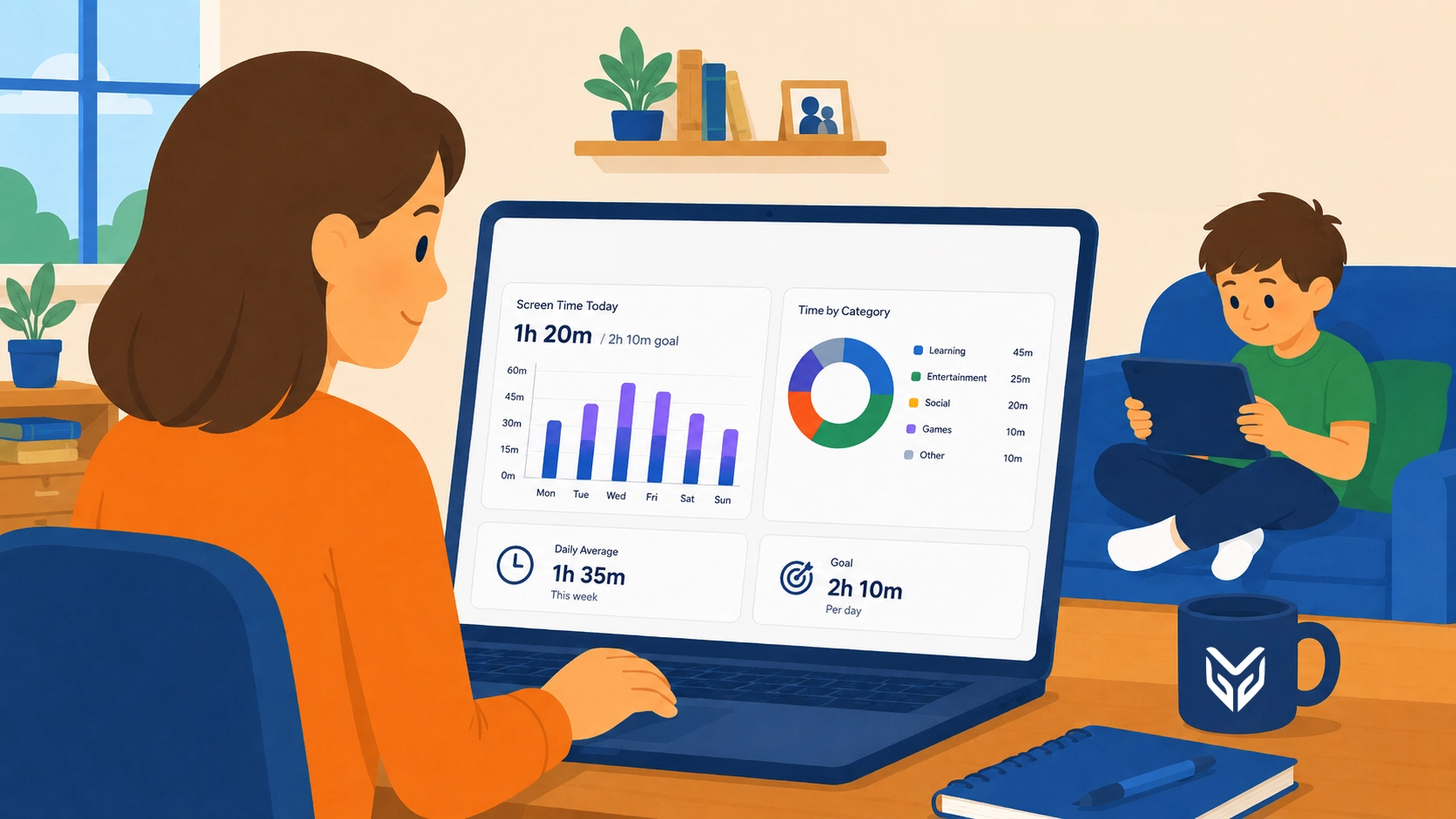
- Set up your Parent Dashboard before the first day, not after something comes up. If your school offers at-home visibility into school-issued device activity, activate it now. Waiting until there’s already a concern means you’re troubleshooting and setting up an account at the same time.
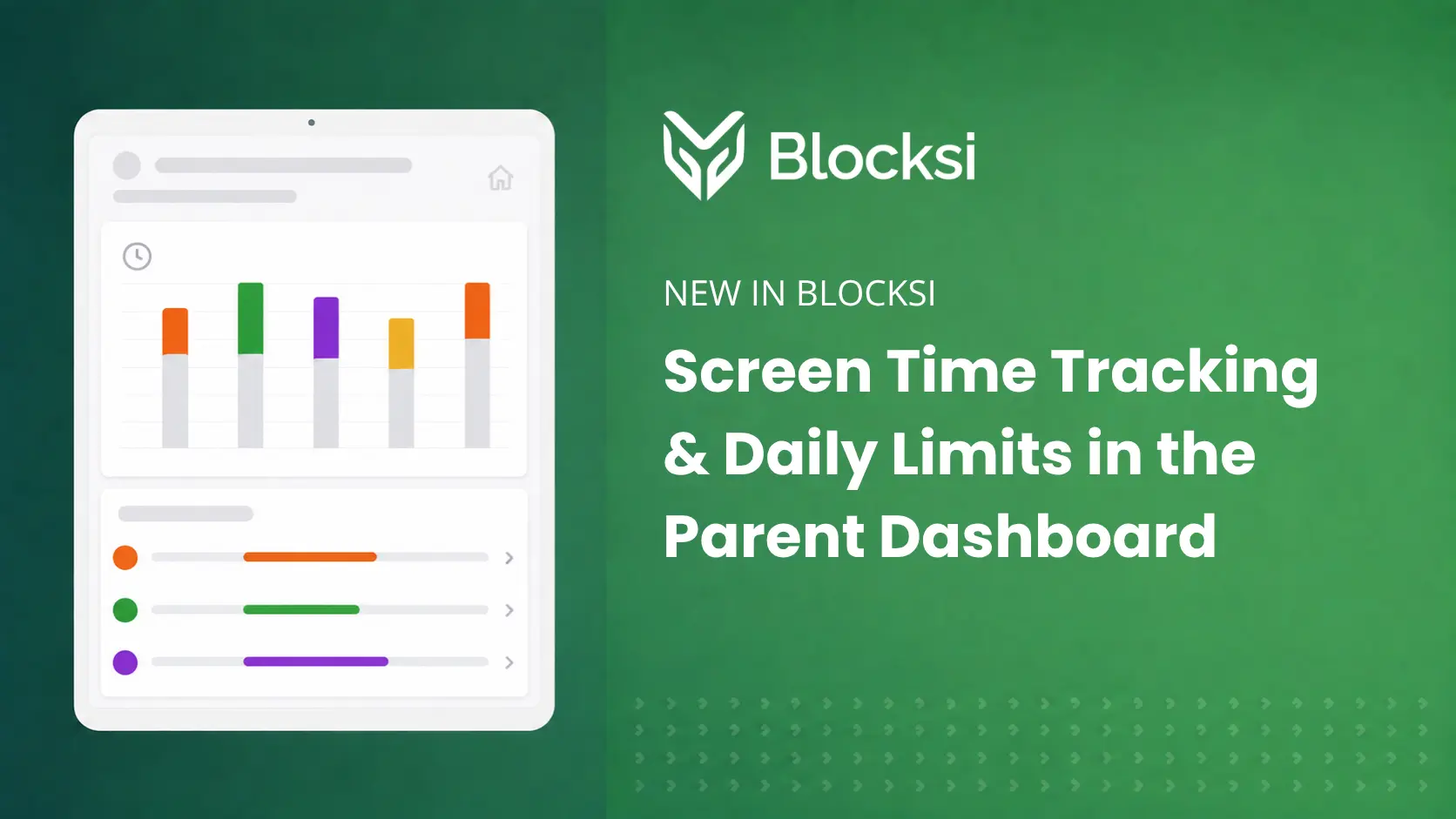
- Set realistic screen time expectations. The old approach of just counting hours doesn’t tell the whole story. What matters more is what the time is actually going toward. That said, the scale of the problem is real: plenty of that screen time happens during the school day itself, when a device should be supporting a lesson, not pulling attention away from it. The conversation with your kid isn’t “no screens.” It’s “what is this time actually going toward.”
- Have the device conversation before the first week, not after a bad report card. Ask your kids what they’re using it for, what’s blocked and why, and what happens if they run into something upsetting. Kids who understand the reasoning behind school device policies are far more likely to work with them instead of around them.
- Know this is a moving target legislatively. Screen time and school device policy is shifting fast across the country, and most of what’s changing pushes toward giving parents more visibility rather than banning devices outright. If your state passes something new this fall, expect your school’s policy to shift along with it.
Key Takeaways
- IT admins: audit filtering against your updated OU structure, check devices and appliances, and treat bypass prevention as a live problem, not a settled one.
- Teachers: configure classroom management before day one so all engagement tools are running from the first bell.
- Parents: activate your Parent Dashboard early, set expectations around screen time based on use rather than raw hours, and talk to your kid about device rules before an issue forces the conversation.
- Everyone touches the same devices this year — admins, teachers, and parents alike. Just at different points. Getting each piece right before the first week starts is what keeps the rest of the semester from becoming reactive.
Not sure where to start, or running into something specific as you get set up? Our team is here to help. Reach out anytime with questions or concerns as you get ready for the new school year.
More to Explore

Follow Our Social Media Channels


