


NEWS
Assessment Mode Update: Extended Time, Live Group Monitoring, and More
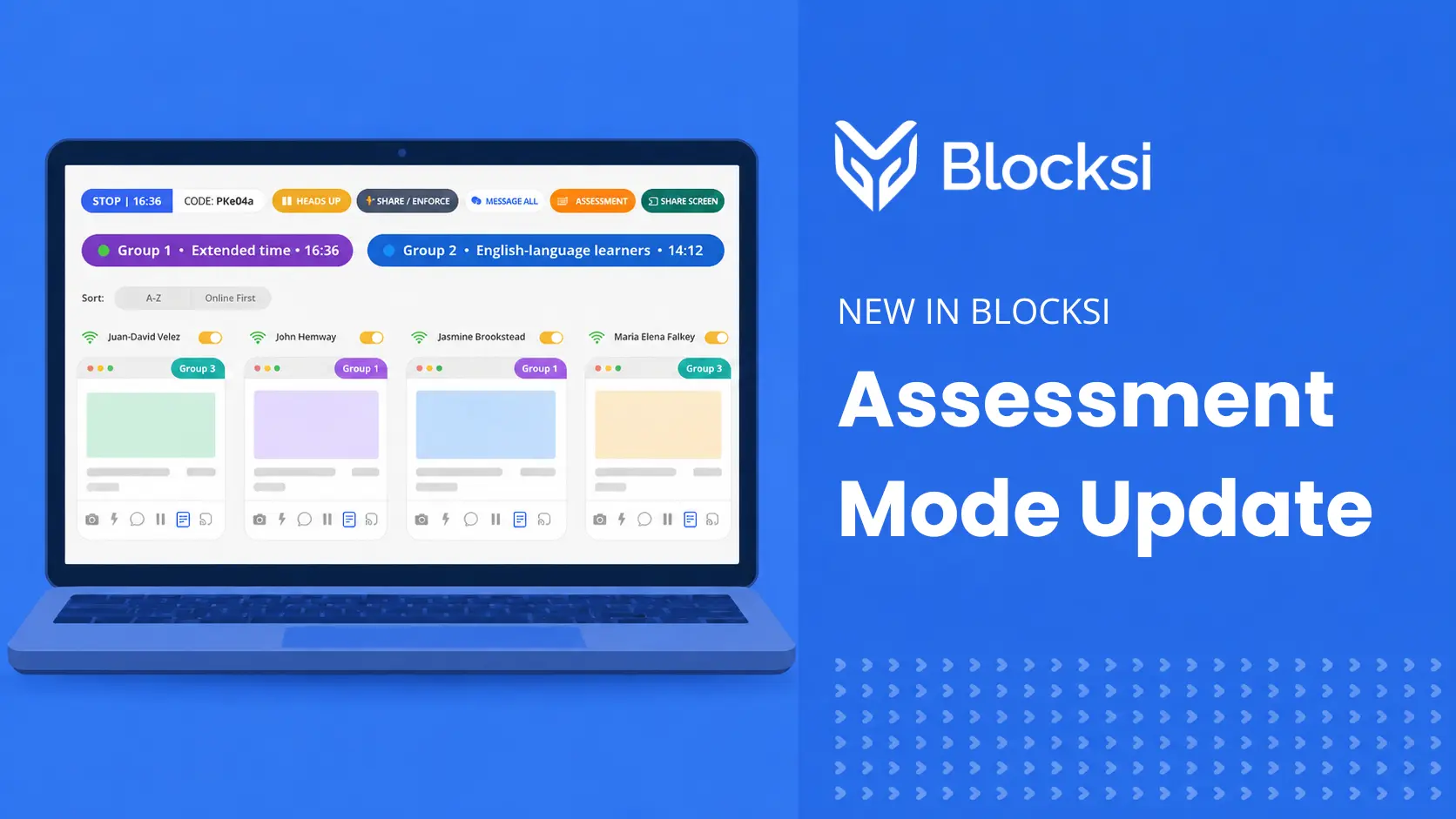
Palo Alto, CA, August 5, 2026 — Blocksi is expanding one of the most-used tools in the Teacher Dashboard: Assessment. The update introduces per-group time controls, live group monitoring, and a class-transfer flow that lets teachers keep still-working students in a monitored session past the bell — all within the same workflow teachers already know.
The problem it solves
Running a timed digital assessment works well for most students. But for students who need more time, the bell creates a hard stop that teachers have had to work around manually, including staying after class, sending students to another room, or abandoning the digital environment altogether. None of those options are clean, and all of them create disruption.
Extended Assessment gives teachers a practical way to provide more time to students who need it — including those on extended-time accommodation plans, such as IEPs or 504 plans. It handles this from within the Teacher Dashboard, without any additional tools or separate workflows.
What’s new
Per-group time controls
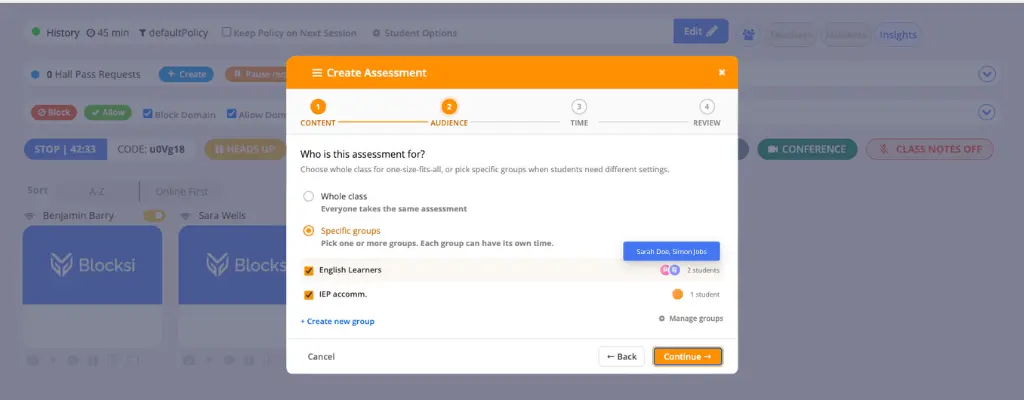
When setting up an assessment, teachers now move through a guided four-step flow: content, audience, time, and review. The first step works just as before: teachers define which URLs students can access during the assessment, using presets or building from scratch. In the audience step, teachers choose who the assessment is for — the whole class, or specific groups when different students need different settings. Any groups already created appear here, with the option to add new ones on the spot. In the time step, each group can get its own duration. Everything is confirmed in a single review screen before the assessment starts, and configurations can be saved as a reusable preset.
Flexible start options
Teachers can choose exactly when an assessment begins. It can start immediately, the same as before. It can also be set to auto-start the next time the class meets, or to auto-start automatically every time the class meets going forward, until the teacher turns it off. Scheduled assessments are saved as named presets, so teachers can find and reuse them later.
Import and export assessment presets
Teachers can now export any saved assessment preset as a CSV file and import presets created outside the dashboard. This makes it easy to back up URL configurations, share a preset with a colleague, or bring in a list prepared elsewhere.
To export, select a preset in the Content step and click the export icon — hovering over it shows “Export preset to your computer” — and the file downloads immediately. To import, open the preset dropdown and select “+ Import new preset” at the bottom, then choose your CSV file. The imported preset is saved under your own presets, separate from admin-configured ones.
Live group monitoring
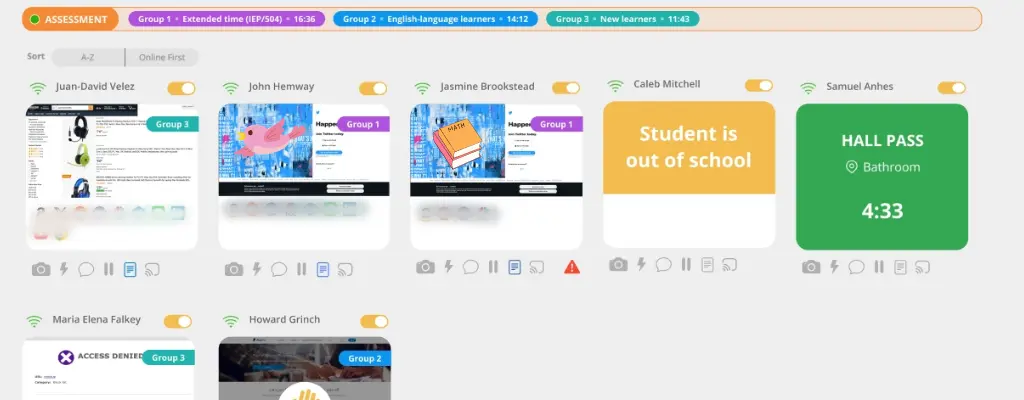
Once the assessment is running, a group-timer banner appears in the toolbar showing each active group and its live countdown. Each student tile also displays a color-coded group tag, so teachers can see at a glance who is in which group without having to look anything up.
Edit any group mid-assessment
Teachers can adjust a group’s assessment while it’s running — add more time, update enforced or allowed URLs, or add a web app or quiz — without affecting any other group. Each group can also be stopped individually, so one group can finish early while the rest of the class keeps working.
Transfer students to the next class
When the bell rings and students are still working, teachers see a prompt to transfer those students into their next class. The teacher selects the destination class and is redirected there upon confirming. Carry-over students appear in their own zone at the top of the grid, clearly separated from the new class. The teacher retains full monitoring and control, can stop the assessment for individual students directly from their tile, and carry-over students rejoin the new class automatically.
Hijack protection
Students in an active extended assessment cannot be pulled into another teacher’s class while their assessment is running. The next-period teacher sees an overlay on those students’ tiles indicating they are in an active assessment, and the option to transfer them is unavailable until the assessment ends.
How to get started
Extended Assessment is included in Blocksi’s Classroom product at no additional cost, with every capability described above available by default. Assessment timers can run beyond the class period out of the box — administrators who prefer to cap them at class duration can do so via Admin Dashboard → Dashboard Settings → Teacher Dashboard → General Settings → Extended Assessment Feature.
To learn more about what Blocksi can do for your school or district, visit blocksi.net or request a demo. Already a Blocksi user? Join the conversation on our Community Forum and stay up to date with the latest news.
Catch Up on What Else Is New

Follow Our Social Media Channels


