


NEWS
Teacher Filter Override: How Teachers Can Unblock Websites During Class
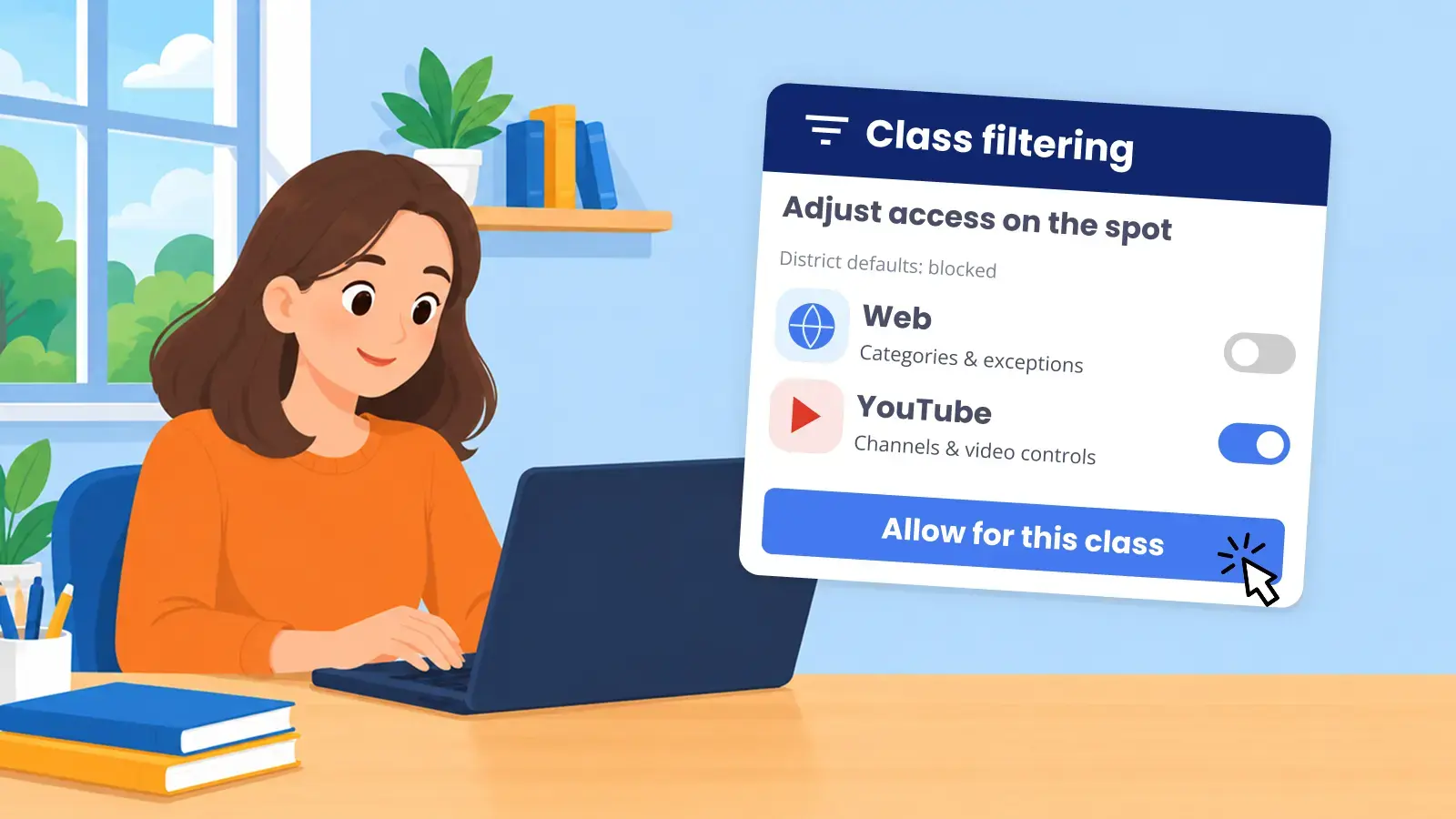
A teacher filter override lets a teacher temporarily unblock websites for their class during a lesson, including sites the district blocks by default. When class ends, the district’s filtering comes back on its own. Without it, every blocked resource becomes an IT ticket. The teacher waits, IT drops what it’s doing, and by the time the site is unblocked, the lesson has moved on. What teachers need is flexibility in the moment. What IT needs is a filter that stays consistent. Here’s how Blocksi handles both.
How does teacher filter override work in Blocksi?
In Blocksi, a teacher filter override works through class policies. When a teacher starts a class, the class policy takes priority over the district policy for as long as the class is active.
That gives teachers a few things IT doesn’t have to handle:
- Open a whole category, not just one site. A budgeting lesson needs used-car prices? Allow the Personal Vehicles category for the class instead of listing individual sites.
- Set it before or during class. Changes apply in real time.
- Choose who it applies to. The whole class, a student group, or one student.
- It reverts on its own. When class ends, students return to their district policy automatically.
Opening whole categories is something Blocksi users find especially useful. As one library media specialist in an Indiana school district put it, “you can allow or block entire categories of websites without needing to know specific URLs.“
Here’s are more ways classroom management helps K-12 educators in modern classrooms.
What teacher filtering controls are available during class?
A class policy can include any of these:
- Web categories: allow, block, or allow with a warning across 85+ categories
- Specific sites: allow or block a domain, subdomain, or URL path
- Keywords: block pages that contain specific words
- Apps: YouTube, Google Docs, Google Drive, Gmail, and Google Classroom
- YouTube: categories, keywords, and specific channels
- Search: turn on SafeSearch, or hide Google’s AI-generated answers in Chrome
- Image blurring: blur inappropriate adult images, or turn blurring off for trusted sites
Teachers find these controls easy to use, too. As Tara Poolson, Technology Integration Specialist at Pearl River County School District, put it, teachers “love how easy it is for them to create their Block and Allow lists.”
How does IT keep control?
A teacher filter override only works if IT trusts it. Blocksi keeps the district in charge of what teachers can open:
- Admins choose the model. Teachers either build their own class policies, or choose only from policies the admin has built and shared. For cautious districts, the second option means teachers pick from pre-approved setups, such as a research policy with specific categories opened.
- Shared lists stay as set. Teachers can apply admin-shared exception lists but can’t edit them.
- Sensitive categories can be locked. Locked categories can’t be added to teacher exception lists.
- No admin access for teachers. Teachers work in the Teacher Dashboard and can’t change district filter settings.
- Limits on when and whom. Admins can set teacher schedules, limit monitoring to in-school students, cap class length, and restrict teachers to students in their assigned OUs.
Why does it matter that filtering and classroom management share one platform?
When you evaluate a K-12 content filter with teacher control, check whether the filter and the classroom tool work as one. In Blocksi, they share a single policy system: the class policy and the district policy are part of the same hierarchy, managed in one place. There’s nothing to sync between two vendors, and nothing for IT to reconcile after class.
This also matters when a district changes filters. If teachers rely on in-class control today, they don’t lose it in the move. They keep opening what lessons need, from the same dashboard they use to run class.
The short version
- A teacher filter override lets teachers open blocked content for a lesson, without an IT ticket or a complicated process.
- In Blocksi, the class policy takes priority while class is active and reverts automatically when it ends.
- Teachers can open whole categories, specific sites, YouTube content and apps, for the class, a group, or one student.
- Admins decide what teachers can open, and teachers never change district filter settings.
Want to see how it works in your district?
FAQ
What is a teacher filter override? A teacher filter override lets a teacher open content the district blocks by default, for their class, during a lesson. In Blocksi, it works through class policies, which take priority over the district policy while class is active.
Does a teacher filter override change the district’s filter settings? No. The district policy stays as set. When class ends, students return to it automatically.
Can teachers unblock a whole category, or only single sites? Both. Teachers can allow an entire category, such as Personal Vehicles, or allow and block specific domains, subdomains, and URL paths.
Can a teacher override filtering for one student only? Yes. A class policy can apply to the whole class, a student group, or one student.
More to Explore

Follow Our Social Media Channels


