


NEWS
Screen Time for Parents: See and Manage Your Child’s Chromebook Use
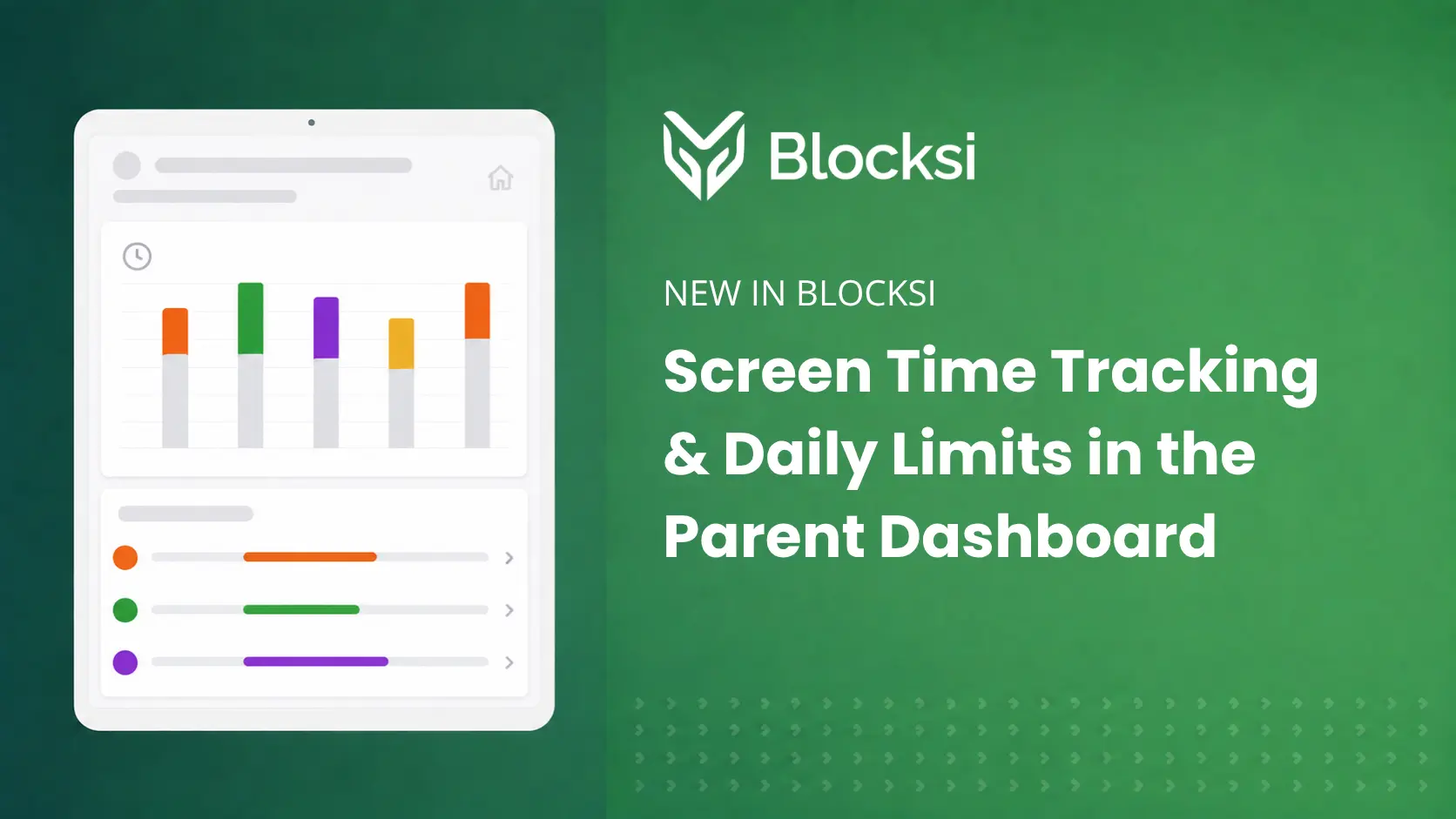
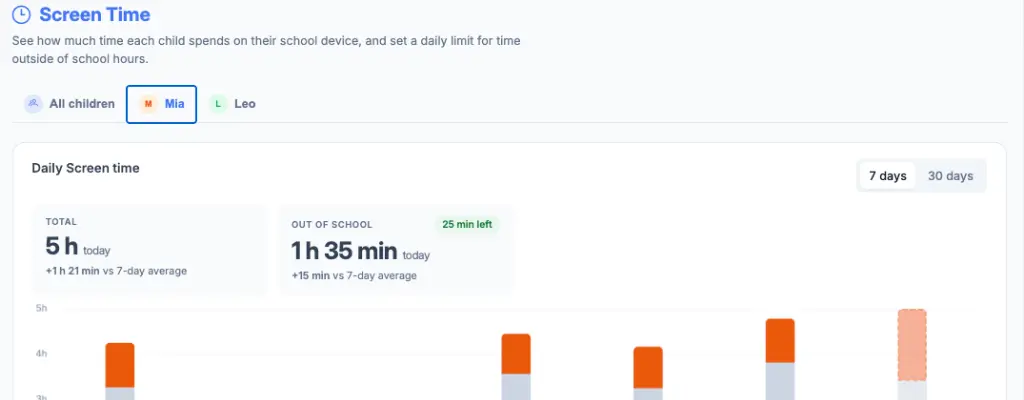
Palo Alto, CA, August 24, 2026 — Blocksi is expanding the Parent Dashboard with Screen Time, a new tool that shows parents how much time their child spends browsing on their school Chromebook — split into in-school and out-of-school time — and lets them set a daily out-of-school limit that locks the device automatically once it’s reached.
How Screen Time works
Parents get a daily view of the chart, with a 7-day or 30-day history on each child’s individual view for a deeper look. It’s Chromebook screen time for parents, built right into the dashboard they already use.
Once a child hits the limit their parent set, the device locks automatically. It unlocks again the next day, at midnight in the parent’s own time zone — not the device’s.
From watching to managing
Setting a screen time limit takes a few taps: open Screen Time from the Parent Dashboard menu, pick a child, turn the daily limit on, and choose a value, either a preset (1h, 1.5h, 2h, 3h) or a custom one. Changes take effect within about 30 seconds, no restart needed.
Built around how kids actually use their devices
A few details make this more than a simple timer:
- In-school time never counts against the limit. Screen Time only tracks and enforces out-of-school browsing — including any time in an active class that runs past the bell — so classwork never eats into a child’s personal time allowance.
- A heads-up before the lock. About 10 minutes before a child reaches their limit, they get a notification letting them know time is almost up, so it’s not a surprise mid-video.
- No fresh allowance at 6pm. Setting a limit partway through the day accounts for the time a child has already used. It doesn’t hand them a brand-new allowance for the evening.
- It works offline. The limit still enforces even if the device loses its internet connection, because the device itself keeps track locally.
- Parents can lift a lockout instantly. Raising the limit or turning it off clears the lock right away, no need to wait for the next day.
- Multiple kids, no mix-ups. Parents with more than one child linked get a family overview showing usage and limits side by side, one child’s limit never affects another’s.
- Teachers still have the final say. If a teacher has locked a device for a classroom activity, Screen Time will never override that lock.
Screen Time joins Blocksi’s broader set of K-12 parental controls, working alongside the content filtering and safety tools your parents already rely on.
What this means for your school
Screen time is one of the questions parents raise most, and now they can check and manage the time their child spends browsing on their school Chromebook, right from the Parent Dashboard they already use. Two things are worth checking on your end so it works as expected from day one:
- School hours need to be configured. Screen Time uses the same location or time-based policy that already separates school time from personal time. If that isn’t set up for a school, everything is treated as in-school time and parents won’t be able to set an effective limit.
- Per-parent visibility is controllable. Screen Time is part of the existing Analytics toggle (Admin Dashboard → Dashboard Settings → Parent Dashboard → Parent Dashboard Control Options → Analytics), so turning Analytics on for a parent gives them Screen Time along with the rest of their analytics in one step.
Getting started
Screen Time is available now on the Parent Dashboard for children using a Chromebook, with no separate setup beyond the school hours and Analytics settings above. Support for Screen Time on the mobile app will follow later this year.
Catch Up on What Else Is New

Follow Our Social Media Channels


