


NEWS
What’s New at Blocksi: macOS Filtering, AI Hub Additions, and Classroom Controls
Palo Alto, CA, July 21, 2026 — Several updates are now live across Blocksi — from macOS filtering gaining more granularity to new classroom controls and AI Hub additions. Here’s a look at what’s new.
Expanded filtering controls on macOS
Blocksi’s macOS web filtering is now even more granular. Schools can filter websites, block keywords, enforce Safe Search, and apply YouTube controls on Mac: the same capabilities already available on Chromebooks and Windows. The macOS app works across Safari, Chrome, Firefox, and other major browsers, including private and incognito modes.
Brisk Teaching is now in the AI Hub
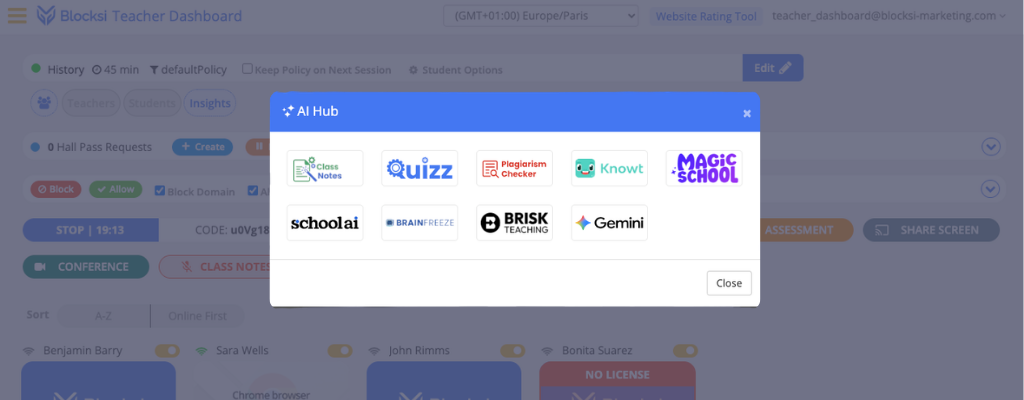
Brisk Teaching has been added to Blocksi’s AI Hub alongside Knowt, MagicSchool, SchoolAI, and other teacher AI tools. Admins can enable it in the Learning Hub Marketplace under AI Tools, after which it appears directly in the Teacher Dashboard’s AI Hub. Teachers can access it with a single click during the school day.
On the addition, Paul Schiltgen, VP of Sales at Blocksi, said: “We’re excited to welcome Brisk Teaching into the Blocksi AI Hub, combining safe classroom technology with teacher-first AI tools to help educators eliminate distractions, spark curiosity, and better serve students.”
Arman Jaffer, CEO of Brisk Teaching, added: “Brisk is an education platform that brings AI into the tools teachers already use—from Google Docs and Slides to YouTube, curriculum materials, and any webpage—while keeping student privacy and security at the center of every experience. We’re excited to be included in the Blocksi AI Hub, making it even easier for educators and schools to leverage AI they can trust. Today, more than one in four U.S. teachers use Brisk to save time, personalize instruction, and focus on what matters most: teaching and learning. Educators can get started at briskteaching.com.”
More control over image blurring and embedded content
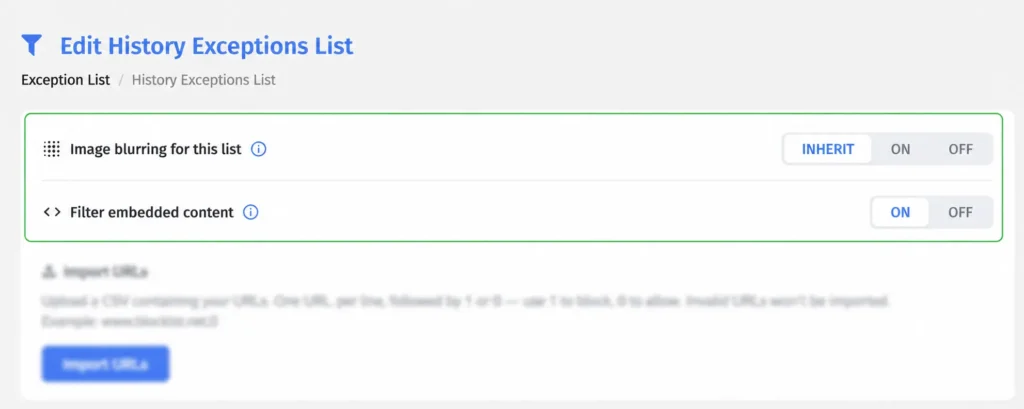
Two new controls are now available on the Exception List edit page in the Admin Dashboard, giving admins more precision over how filtering behaves on trusted sites.
Image blurring per list: A new Image Blurring setting on the Exception List edit page lets admins bypass image blurring for trusted educational sites without disabling it globally. Teachers also have the option to disable image blurring on allowed URLs during an active class.
Filter embedded content: A new Filter Embedded Content toggle controls whether YouTube videos, widgets, and iframes are filtered on allowed pages. Turning it off allows embedded content to display even when the source site is blocked, which is useful for educational content hosted within trusted pages.
Teachers also have two new options in the Block/Allow List during class:
Show embedded content — when enabled, embedded content (YouTube videos, widgets, iframes) displays on allowed pages even if the source site is blocked
Don’t blur images on allowed URLs — overrides the policy setting and shows all images on websites added to the Allowed URLs list
Admins get more flexibility over substitute teacher management
A new admin setting controls whether teachers can add or remove substitute teachers from their own dashboard. To configure it, go to Admin Dashboard → Dashboard Settings → Teacher Dashboard → General Settings.
When the setting is disabled, only admins can manage substitutes. When enabled, teachers retain the ability to manage their own substitutes as before.
What else is new
- Parent Accounts — Admins can now sort and filter the Parent Accounts table in Dashboard Settings by Clever Building or Location Number, making it easier to manage parent invites by school or location.
- Delegate accounts — Admins can now share multiple filtering policies with a Delegate account in a single action, rather than assigning them one by one. Delegates also now have control over Analytics for parent accounts within their Organizational Units, with the ability to toggle Analytics on or off directly from the Delegate Dashboard.
- DNS On-Premises — A new Subnets section on the DNS On-Premises configuration page lets admins assign DNS Policies to IP address ranges, simplifying network-level filtering without configuring each device individually.
These updates are part of our ongoing effort to ship improvements that matter in practice — across every role that relies on Blocksi to keep schools running smoothly.
Want to see what Blocksi can do for your school or district? Visit Blocksi’s website to learn more or request a demo.
Already a Blocksi user? Join the conversation on our Community Forum to stay up to date with the latest news and connect with other schools.
Catch Up on What Else Is New

Follow Our Social Media Channels


