


NEWS
Class Notes: Automatic Lesson Notes for Teachers
Palo Alto, CA, April 9, 2026 — As part of expanding our Classroom Management platform, Blocksi is introducing a valuable new feature: Class Notes.
Class Notes automatically captures spoken instruction during a live class session and turns it into a clean summary with keywords and main points of the class — helping teachers document lessons effortlessly, support student learning, and simplify communication with families and administrators.
This feature is built directly into Blocksi’s Teacher Dashboard and AI Hub.
Why Teachers Need Class Summarization
Teachers speak thousands of words per class, but much of that instructional value is often lost the moment the period ends. Class Notes automatically captures spoken instruction, helping teachers save time and reduce workload, providing resources that can be referred back to in various situations, like administrative follow-ups, parent communication, and academic disputes.
It’s a helpful tool for supporting absent students, reinforcing lessons for multilingual learners, and offering accommodations. Class Notes supports English, French, Spanish, Portuguese, German, Dutch, and Italian. With Class Notes, teachers get a clean, searchable summary after each class, making lesson records easy to reference, share, and keep organized.
What Blocksi’s Class Notes Offers
Automatic Class Summarization
Teachers can choose to:
- Begin the Class Notes transcription automatically when the class starts, or
- Toggle it on only when needed.
The Class Notes transcription ends automatically when the session ends.
Prompt PDF Delivery
Every class summary is promptly available for download as a PDF file and is sent to the teacher’s preferred email.
Teacher-Controlled and Flexible
Teachers decide:
- When to record
- When to stop
- Whether to automate the process
Secure and Private
Class Notes only records when activated by the teacher and is stored securely alongside other classroom resources.
Quick One-Time Setup
Admins enable Class Notes in the AI Hub and push the Blocksi Teacher Extension through the Google Admin Console. Teachers then complete a quick 3-phrase voice calibration. Once completed, the feature is ready to use.
How Class Notes Works
Admin Activation
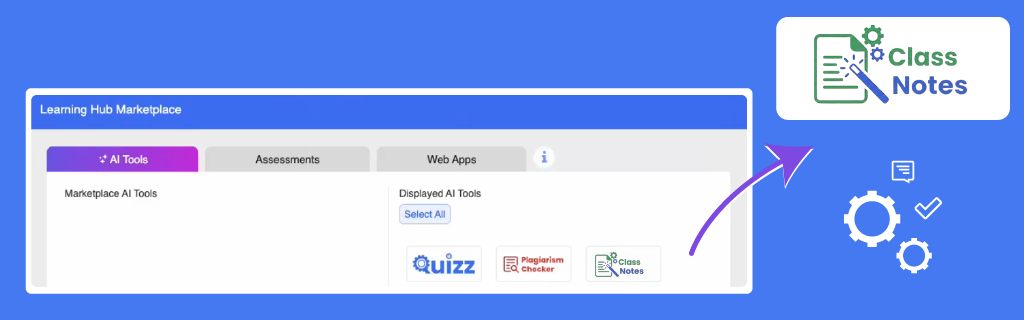
Admins enable the feature via: Admin Dashboard → Dashboard Settings → Teacher Dashboard → Learning Hub Marketplace. From the Marketplace, the admin adds Class Notes to the list of displayed AI tools, making it available in the Teacher Dashboard under the AI Hub immediately.
Teacher Setup (One-Time)
Inside the AI Hub, teachers:
- Click Start Recording
- Say “Blocksi” (recording auto-stops)
- Approve or redo the phrase
- Repeat 3 times, then tap Finish
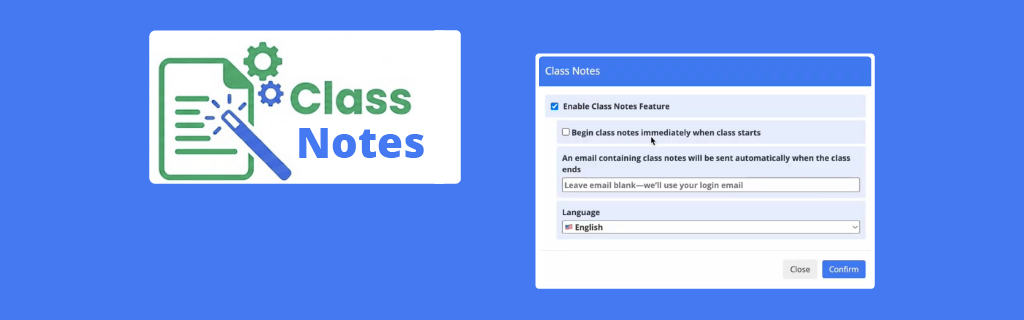
The feature is now unlocked. Teachers can then choose:
- Begin transcription immediately when class starts, and/or
- Input the email address where the Class Notes should be sent when class ends (otherwise, it will be sent to the default teacher email address).
A new button — Class Notes On / Class Notes Off — appears in the Teacher Dashboard’s action bar.
During Class
Teachers can manually start or stop transcription at any time, or let it automatically run for the entire class duration. While recording is active, teachers can see audio level indicators moving in real time, confirming that the system is actively capturing sound.
After the session ends, a PDF summary is generated and accessible under Notes on the class tile. The transcript is available for download on the dashboard and sent to the teacher’s chosen email.
Class Notes captures audio directly from the teacher’s device. For best results, we recommend using a classroom microphone system such as the Media Connector from Lightspeed Technologies to ensure clear, consistent voice capture. Other external microphones connected to the teacher’s device can also be used, depending on the classroom setup.
Chrome Extension (Runs Automatically)
Note: To support Class Notes, a small Chrome extension — Blocksi Teacher Extension — runs in the background to handle the transcription process. The district admin must initially deploy and enforce the extension through the Google Admin Console. Once logged into their managed Chrome profile, teachers only need to click the extension icon once to select their preferred audio source for Class Notes transcription — no other extension management is required.
Lesson Capture Made Easy with Blocksi’s Automatic Notes
Blocksi’s Class Notes turns everyday instruction into valuable written content that teachers can reuse, reference, or share. Whether the teacher is supporting absent students, preparing documentation, or simply wanting a record of what was said in class, Class Notes makes it easier.
Class summaries are stored by class and date, making them easy to find and share. As a fully integrated tool in Blocksi, it’s ready to use without the need for new logins or systems. Available now for all Blocksi teachers.
Catch Up on What Else Is New

Follow Our Social Media Channels


